
BITUS JOURNAL · Fulfillment
Shopify + Bitus Dropshipping: Complete Setup Tutorial
Connect your Shopify store to Bitus for automated dropshipping fulfillment: quotes, samples, API order sync, test orders, and daily workflow, step by step.
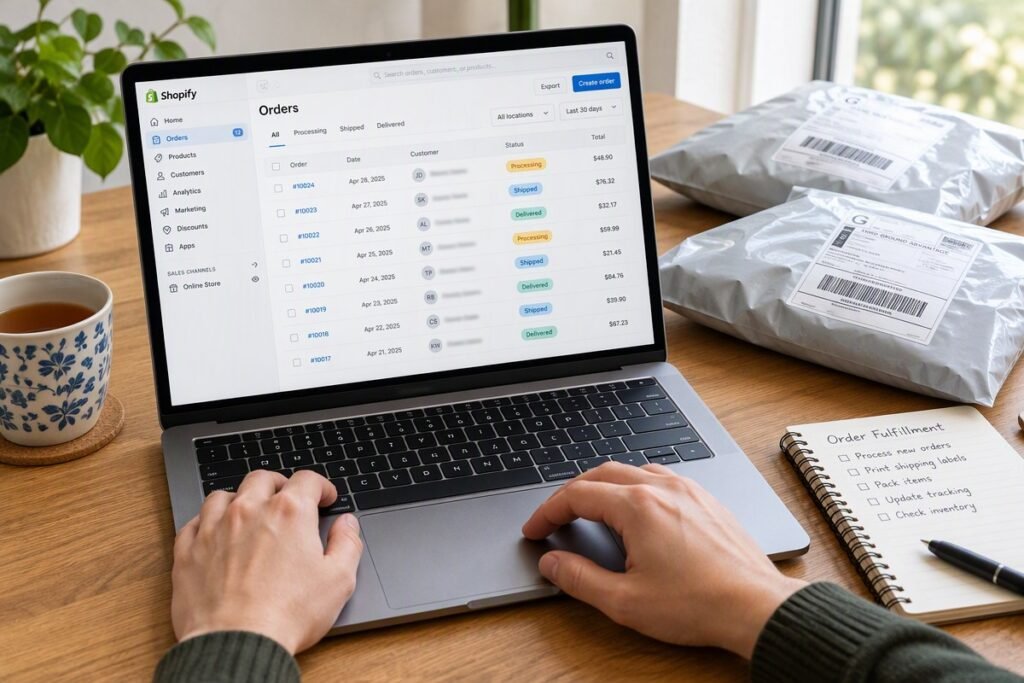
Connecting your Shopify store to Bitus gives you automated dropshipping fulfillment: orders placed on your store sync to Bitus automatically through Dianxiaomi, Bitus picks, fully inspects, packs, and ships each order, and tracking numbers sync back to Shopify automatically.
Most sellers complete the full setup — product quotes, samples, store connection, and a test order — within one to two weeks. The bulk of that time is sample shipping, not paperwork: the technical connection itself takes under an hour.
Still weighing your options? Start with our guide on how to choose a dropshipping agent.
What do you need before you start?
You don’t need much. Gather these four things before you begin:
- An active Shopify store. Any plan works. Have your store’s
.myshopify.comURL handy — you’ll need it during the connection step. - Product links or ideas. Links from 1688, Alibaba, AliExpress, or even a competitor’s product page are enough to start. Photos work too.
- A free Bitus account. There are no setup fees or monthly fees — you pay per order fulfilled.
- WhatsApp installed. Every Bitus client gets a named dedicated agent with direct WhatsApp and email contact, and most setup communication happens there.
Step 1: Get free product quotes from Bitus
Before connecting anything, confirm your unit economics. Send your product links or images to your dedicated agent and request a quote. Sourcing quotes are free.
A complete quote should break down three numbers:
- Product cost — the factory price per unit.
- Shipping cost — by destination and shipping method. Ask about both standard options and special shipping lines where available for your markets, which typically offer faster transit with better tracking.
- Fulfillment fee — the per-order handling charge.
Ask these questions with every quote:
- What is the sample cost, and is it credited back if I scale?
- What is the current processing time for this product?
- Which carriers are available for my main markets? (Bitus works with YunExpress, 4PX, USPS, DHL, FedEx, UPS, and special-line partners.)
- Are there custom packaging options if I want branding later?
Get quotes for 3–5 products even if you only plan to launch one. Comparing quotes side by side is the fastest way to spot which products have real margin.
Step 2: Order samples — don’t skip this
Samples are the cheapest insurance in dropshipping. A sample typically costs the product price plus shipping, and it lets you verify quality before a single customer ever sees the product.
Order 2–3 units of each finalist product and check:
- Functionality. Does it work exactly as described?
- Appearance. Colors, finish, and build quality versus the supplier photos.
- Size and weight. Measure it. Listing the wrong dimensions is a top cause of returns.
- Packaging. How does it arrive? Could it survive international transit in bulk?
- Accessories. Are all parts, cables, and manuals included?
Photograph your samples. These photos become your listing images — real photos convert better than supplier renders and eliminate “not as pictured” complaints.
Step 3: Connect your Shopify store for automatic order sync
This is the technical core of the setup. Bitus connects Shopify stores through Dianxiaomi (店小秘), an order management system widely used by China-based fulfillment teams, so orders flow automatically — no CSV uploads, no manual entry.
The general flow is:
- Tell your Bitus agent you are ready to connect and share your store’s
.myshopify.comURL. - Authorize the connection. Your agent sends an authorization link; you approve permissions in Shopify — typically reading orders and products, and writing fulfillment and tracking information.
- Map your SKUs. Your agent matches each Shopify product and variant to the correct Bitus SKU.
- Confirm sync settings. Agree whether orders sync automatically or need your approval first. Most sellers choose automatic sync once testing is done.
- Verify the connection. Place no orders yet — just ask your agent to confirm the store shows as connected.
What syncs automatically once connected:
- New Shopify orders appear in Bitus without manual import.
- Tracking numbers sync back to Shopify (and to your customer) when orders ship.
- If you hold inventory with Bitus, stock levels can sync to prevent overselling.
Step 4: Add products to Shopify and set your pricing
With quotes in hand, add your products to Shopify and price them using real numbers — not guesses.
A healthy pricing formula looks like this:
| Cost component | Example |
|---|---|
| Product cost | $8.00 |
| Shipping to main market | $4.50 |
| Fulfillment fee | $1.50 |
| Shopify + payment fees (~3%) | ~$1.00 |
| Total landed cost per order | $15.00 |
| Target selling price | $29.99 |
| Gross margin | ~50% |
Illustrative example only — plug in your actual quoted numbers.
Leave room for ad spend in your margin. A product that looks profitable at 50% gross margin can still lose money if customer acquisition costs $12 per order. Most experienced sellers want at least 3x markup on landed cost before testing a product with paid ads.
Step 5: Configure Shopify shipping settings to match reality
In Shopify’s shipping settings, set up zones and rates that reflect what you can actually deliver:
- Name your shipping options honestly. “Standard (8–12 business days)” beats “Fast Shipping” that isn’t fast.
- Match rates to costs. If express shipping costs you $12, don’t offer it for $4.99 unless the product margin covers it.
- Set processing expectations. Your “processing time” plus transit time is the delivery promise your customer sees. Confirm processing times with your agent before publishing.
Nothing kills a store faster than delivery promises the supply chain can’t keep.
Step 6: Place a test order
Before spending a dollar on traffic, run one real order through the entire system:
- Place an order on your own Shopify store (use a discount code so you’re not paying full price to yourself).
- Confirm it appears in Bitus automatically.
- Let Bitus fulfill it normally — don’t ask for special treatment.
- Check that the tracking number syncs back to Shopify.
- Receive the package and inspect it like a customer would.
Verify the full checklist: correct product, correct variant, packaging quality, tracking accuracy, and total door-to-door time. If anything is off, fix it now — it’s ten times cheaper than fixing it across fifty customer orders.
Step 7: Go live — your daily workflow
Once the test order passes, you’re operational. A typical day looks like this:
- Morning: Review orders that synced overnight. Flag any with customer notes (gift messages, address quirks) to your agent.
- Midday: Bitus picks, fully inspects, packs, and ships. Remember: every order gets full inspection, not random sampling.
- Ongoing: Tracking numbers sync automatically. You handle customer service; your agent handles logistics exceptions.
- Weekly: Review shipping times and any QC flags. Reorder bestsellers before they run low.
As volume grows, the same workflow scales — and when you’re ready, the upgrade path to custom packaging and private label is already in place.
Manual fulfillment vs. Bitus automatic sync
| Manual (self-fulfilled) | Bitus automatic sync | |
|---|---|---|
| Order processing | Copy-paste each order to a supplier | Automatic |
| Quality control | None — supplier ships direct | Full inspection on every order |
| Tracking updates | Manual entry per order | Auto-synced to Shopify |
| Time per 50 orders | Several hours | Minutes of review |
| Scaling past 100 orders/day | Breaks down | Same workflow holds |
How Bitus helps with Shopify dropshipping
Bitus dropshipping fulfillment is built for exactly this workflow: dropshipping from 5 orders per day with automatic Shopify order sync, full quality inspection on every order, special shipping lines to major markets, and a named dedicated agent you can reach directly on WhatsApp. There are no setup fees or monthly fees — you pay per order, so the setup above costs nothing until you start selling.
FAQ
How long does it take to set up Bitus with Shopify?
Most sellers finish in one to two weeks. The technical store connection takes under an hour; almost all the calendar time goes to sample shipping and evaluation. Ordering samples early — before you finish building your store — keeps things moving in parallel.
Does Bitus charge a fee to connect my Shopify store?
No. There are no setup fees or monthly fees. You pay per order fulfilled: product cost plus shipping plus a fulfillment fee.
Will tracking numbers update automatically in my Shopify store?
Yes. When Bitus ships an order, the tracking number syncs back to Shopify automatically, and your customer receives the standard Shopify shipping notification.
Can I connect multiple Shopify stores to one Bitus account?
Yes — most sellers run multiple stores through a single Bitus account. Ask your dedicated agent to add the second store connection in Dianxiaomi.
Ready to connect your store?
Get a free product quote and talk through setup with a dedicated agent — no commitment, and no fees until you ship your first order.
Tell us what you sell — get a sourcing & fulfillment quote within one working day.